Chatter velocity
The Chatter Velocity sub-tab — under the Engagement tab, next to Chatter Tiers — shows the shape of your stream: how many people were in chat at any moment, how quickly they arrived, and how they tailed off. It divides the session into 5-minute windows and reads everything from chat activity.
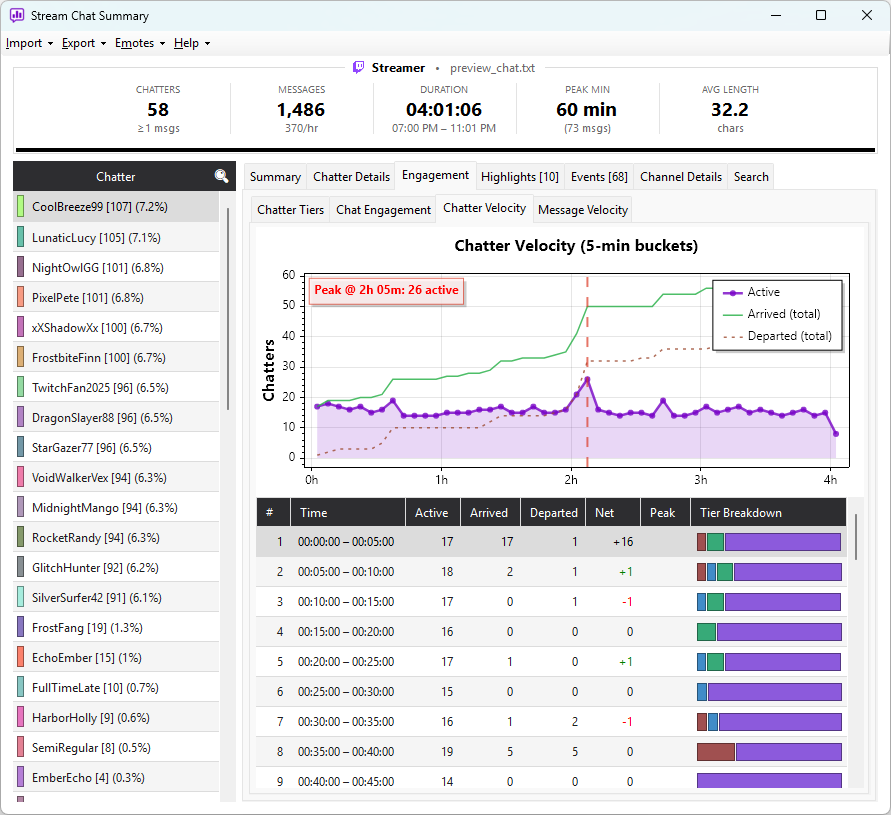
Reading the chart
Three series are plotted across the stream:
| Series | What it shows |
|---|---|
| Present | Unique chatters active in each 5-minute window — the size of the room at that moment, drawn as a filled area |
| Arrived (total) | A running total of unique chatters who have shown up so far. Where this line flattens is your total reach for the stream |
| Departed (total) | A running total of chatters who have sent their last message — a cumulative drain curve |
The peak window — when the most chatters were present at once — is marked with a vertical line and labelled with its time and count. Hover any point to see the present count and both running totals; the peak window is flagged with a ★.
A chat log records when someone last spoke, not when they stopped watching. The "Departed (total)" line therefore tracks last-message timing — silent lurkers who never chat again look like they departed at their last message, and by the end of the stream the line always climbs to the full unique-chatter count. Read it for the shape of the drain — when departures start to accelerate — rather than as an exact attendance figure.
For live sessions, the app uses an inactivity heuristic instead: a chatter is only counted as departed once they've been silent for 3 consecutive buckets (15 minutes). Chatters who last spoke within the last 2 buckets are still considered potentially present, so the curve won't climb during active stretches.
The per-window grid
Below the chart, one row per 5-minute window breaks the same data down:
| Column | Meaning |
|---|---|
| # | Window number, in order |
| Time | The elapsed-time range the window covers |
| Active | Unique chatters present in the window |
| Arrived | Chatters seen for the first time in this window |
| Departed | Chatters whose last message falls in this window |
| Net | Arrivals minus departures for the window |
| Peak | A ★ marks the peak window — the same one called out on the chart |
| Tier Breakdown | A stacked bar showing the loyalty-tier mix (Core / Engaged / Casual / Drive-by) of the chatters active in that window |
The Tier Breakdown bar uses the same four chatter tiers as the rest of the app, so you can see at a glance whether a busy window was carried by loyal regulars or a wave of one-off visitors.
Using it in practice
The Present curve answers "when was my stream at its biggest, and what shape was the session?" — a flat plateau, a single spike, or a slow build each tell a different story. A sharp jump in Arrived (total) often lines up with a raid or a clip going around. When the Departed (total) curve starts climbing steeply, that's where the room began to empty — worth comparing against what you were doing on stream at that time.
Line up the peak window against your highlights — the moment chat was busiest is often, but not always, the moment it was loudest. When they differ, you've found a big-but-quiet stretch or a small-but-explosive one.