Message velocity
The clearest view of how busy chat was, minute by minute.
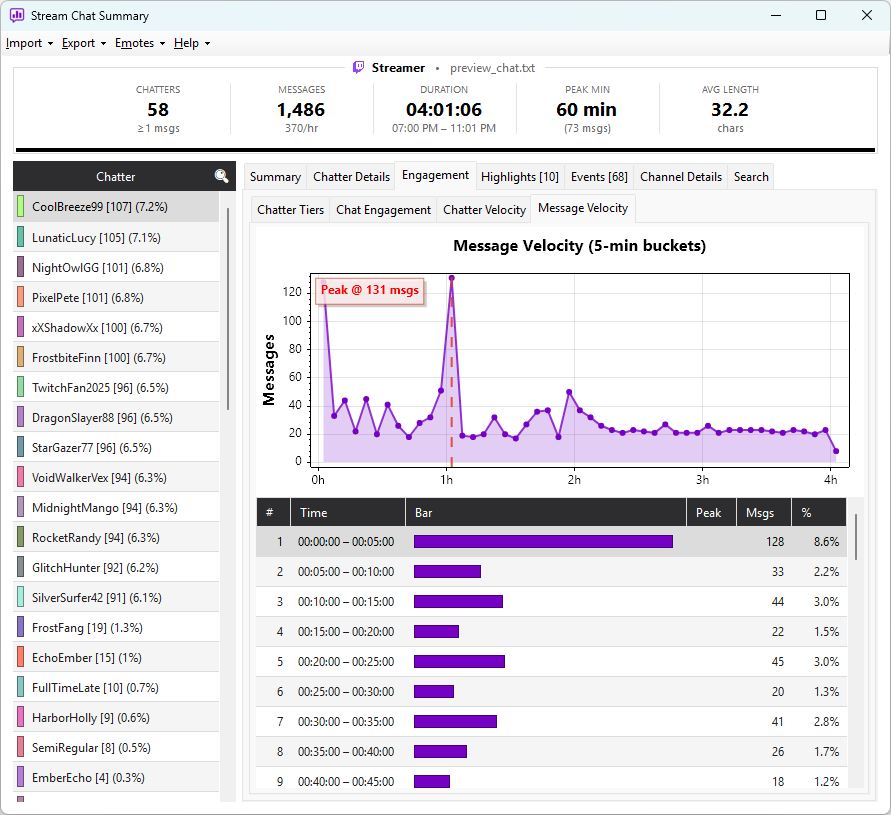
The Message Velocity sub-tab — under the Engagement tab — shows a filled-area line chart of messages per time window across the whole stream, plus a grid beneath it with the underlying numbers.
What you see
| Column | Meaning |
|---|---|
| # | Bucket number, in order |
| Time | Elapsed-time range covered by the bucket (e.g. 00:00:00 – 00:05:00) |
| Bar | Visual bar proportional to the bucket's message count relative to the peak |
| Peak | ★ marks the busiest bucket — the same one annotated on the chart |
| Msgs | Total messages in that window |
| % | The bucket's message count as a share of all messages in the stream |
The default window size is 5 minutes. Highlights show up as visible peaks on the line — the Highlights tab gives you the same peaks ranked and annotated.
Reading the chart
- A flat line — steady conversation throughout
- One tall spike — a single hype moment (a clutch play, a big sub bomb)
- A rising slope — chat building over the course of the stream
- A drop in the middle — likely a break, a quiet game segment, or a tech issue
Hover any point on the line to see the exact message count and time.