Highlights
A highlight is a window of the stream where chat activity spiked far above its normal rate. The app detects them automatically — no manual tagging needed — and ranks each one by intensity, so the loudest moment is #1. The grid lists them in stream order by default, and every column is sortable.
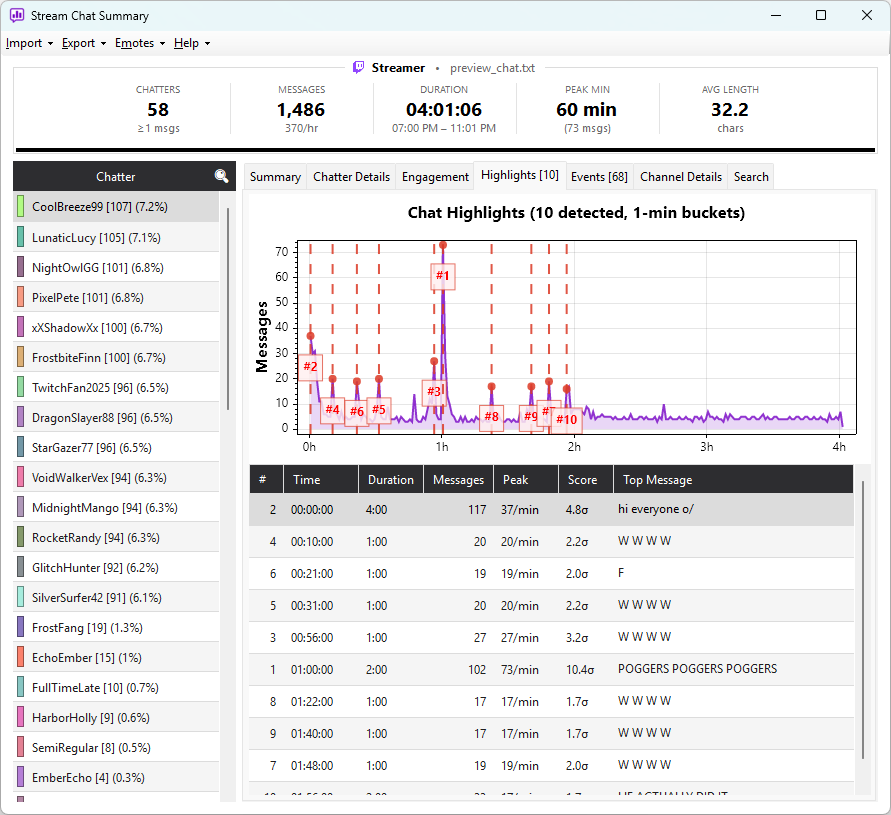
How detection works
The app runs through the chat during import:
- The stream is divided into equal time windows (60 seconds by default)
- Each window's message count is compared against the typical count for that stream
- Windows that are unusually busy are marked as hot moments
- Hot moments that happen back-to-back are merged into a single highlight
- The biggest highlights are kept — ten by default
Highlights are scored relative to that stream's own baseline, not a fixed number. A 600-message minute might be quiet for a 100k-viewer event but legendary for a small channel — both surface correctly, because "unusually busy" is measured against each stream's own typical activity.
Tunable in the import dialog
Highlight settings live in the Import dialog, not in a separate Settings menu. Adjust them before clicking Import:
| Option | Default | Effect |
|---|---|---|
| Enable highlight detection | on | Turn the feature on or off |
| Highlight window (seconds) | 60 | Smaller windows catch sharper spikes; larger windows smooth the readings |
| Highlight sensitivity | 1.5 | Lower surfaces more moments; higher keeps only the biggest |
| Max highlights | 10 | Limit on how many to display |
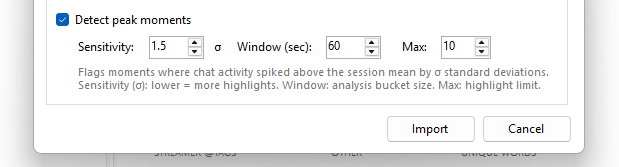
The default sensitivity of 1.5 works for typical 3–4 hour streams. Raise it to 2.5+ for marathons and subathons (otherwise every meal break gets flagged), and drop it to around 0.8 for short Q&A or solo streams where small moments still matter. The analysis options page has a suggested-value table per stream type.
The Highlights tab
If any highlights were detected, a Highlights tab appears on the right side of the main window with a grid:
| Column | Meaning |
|---|---|
| # | Rank by intensity — the loudest moment is 1. The grid is sortable; the default order is chronological |
| Time | Elapsed time from the start of the stream to when the spike began |
| Duration | How long the busy moment lasted |
| Messages | Total messages sent during the highlight |
| Peak | Peak message rate at the busiest minute, e.g. 123/min |
| Score | How much busier than usual chat was, in standard deviations above the stream's baseline, e.g. 2.3σ |
| Top Message | Most common message in the highlight (truncated to ~80 chars) |
Right-click any row for Copy to Clipboard, Copy Twitch Timestamp Link, or Open in Browser to jump straight to that moment in the VOD.
Exporting highlights
Highlights are included in every export format. The Discord export produces a ready-to-paste shot-list — see Exporting for the exact output format.
If the Highlights tab is missing, no segments exceeded your sensitivity threshold. Try lowering it and reimporting, or check that Enable highlight detection wasn't unchecked.
Next: Channel details →