Exporting results
Once you've analysed a log, there are four ways to share what you found. All live under the Export menu.
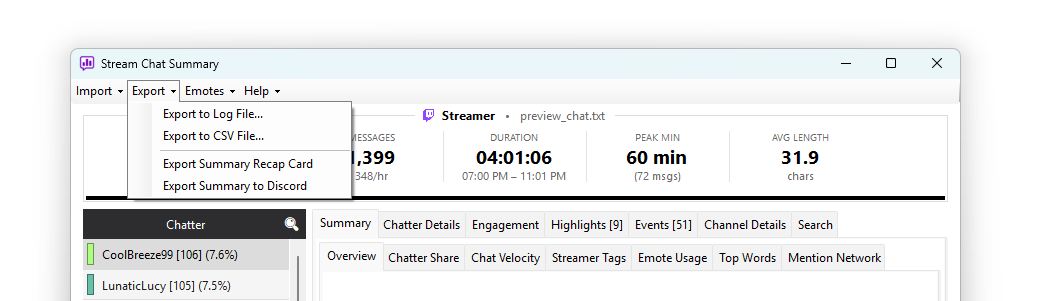
Export to Log File
Menu: Export → Export to Log File...
Writes a Chatterino-compatible .log file containing every message in the
log. The format is the same one the app reads via Import → Log File
(Chatterino), which means you can:
- Send the log to someone else for them to analyse with their own settings
- Strip emotes or filter messages externally, then reimport
- Archive a captured live session in a future-proof, human-readable format
The exported file looks like:
[14:32:18] streamer_user: thanks for the raid!
[14:32:21] viewer123: LETS GO
[14:32:24] [raid] Raid from another_channel with 47 viewers
Event markers (raids, subs, follows) are written as bracketed event lines and will reimport correctly.
Export to CSV File
Menu: Export → Export to CSV File...
Writes a CSV with four columns:
offset_seconds,username,user_color,message
The first row is a header. Best for:
- Loading into Excel or Google Sheets for custom slicing
- Pre-processing with Python / pandas / R
- Feeding another tool that expects this format (TC Downloader output is the same shape)
Per-chatter aggregate stats can be included as a commented header block at the top of the file.
Export Summary Recap Card
Menu: Export → Export Summary Recap Card...
Generates a shareable PNG image summarising the whole session — headline metrics, message breakdown, engagement chart, top chatters, and top emotes, all in one card. A preview window opens so you can review the card before saving or copying it to the clipboard.
Export Summary to Discord
Menu: Export → Export Summary to Discord
This one's slightly different — instead of saving a file, it copies a Markdown-formatted summary to your clipboard. Open Discord, paste, and post.
The summary includes:
- Total messages, unique chatters, peak minute, duration
- Top 10 chatters by message count
- Message category breakdown (questions, mentions, commands, etc.) with percentages
- Detected highlights if any (with timestamps and top messages)
It's designed to fit comfortably in one Discord message — short enough to be scannable, detailed enough to be useful for post-stream debriefs.
The export is also handy for handing off to a video editor. Paste it into their task ticket or shot-list template — the timestamps in the Highlights section link directly to the VOD moments worth clipping.
The export is capped at roughly 1,900 characters so it fits inside Discord's single-message limit. If a summary would overflow (very long highlights, lots of categories), the exporter trims it cleanly at the last newline and appends a "… Content truncated to fit Discord's character limit …" marker so you can see something was cut.
Which format for which job
| Task | Best format |
|---|---|
| Sharing the raw log | Log File |
| Re-analysing later with different settings | Log File |
| Spreadsheet analysis | CSV |
| Custom scripts / data pipelines | CSV |
| Posting stream stats to social media | Recap Card |
| A quick visual recap for your community | Recap Card |
| Discord post-stream debrief | Discord summary |
| Editor handoff with highlight timestamps | Discord summary |
What about HTML or PDF?
Not currently supported as native export formats. If you need a styled self-contained report, paste the Discord summary into a Markdown-to-HTML tool, or open the CSV in a spreadsheet and use that tool's export.