Main window
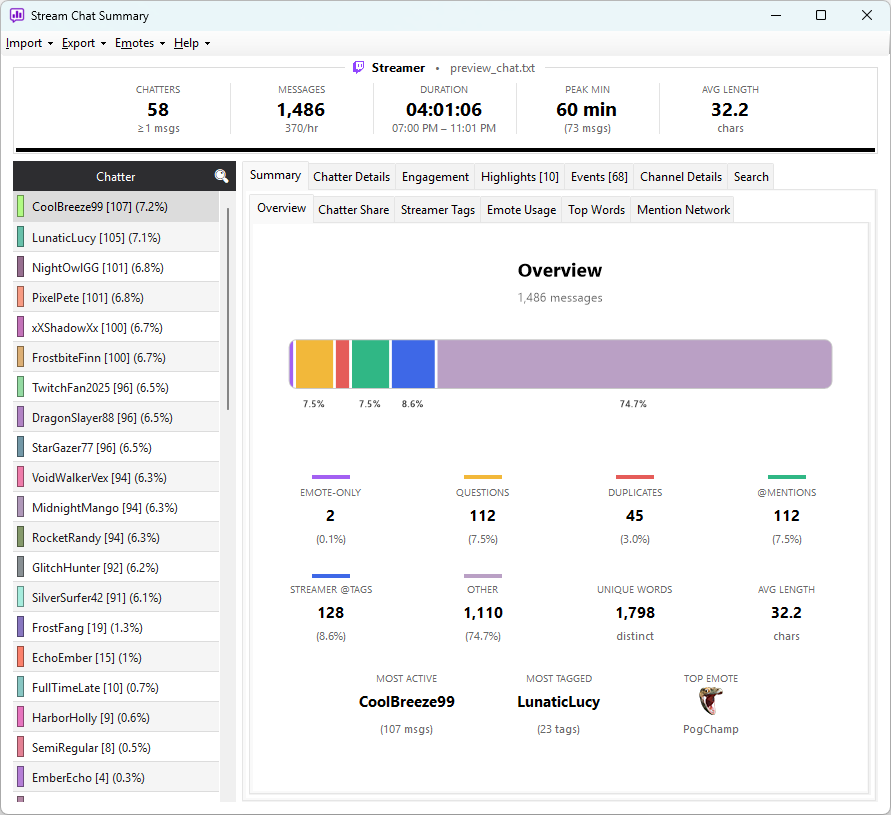
The main window is split into two halves, each with its own set of tabs. The left half is about chatters — the people in the chat. The right half is about the chat as a whole — charts, breakdowns, and channel info.
The header strip
Centred above the metric strip, a thin header line identifies the current session:
[platform logo] {Streamer name} · {source file name}
For example, a Twitch capture of Streamer imported from
preview_chat.txt shows the Twitch logo, the streamer name, a dot
separator, and the filename. Each piece appears only when known:
- Platform logo — shown when both a platform and a streamer name are set (auto-detected for VOD imports; entered manually for log / CSV / live captures)
- Streamer name — hidden if the importer didn't capture one
- Source name — the filename for file-based imports, or a label
like
Live: #channelfor live captures
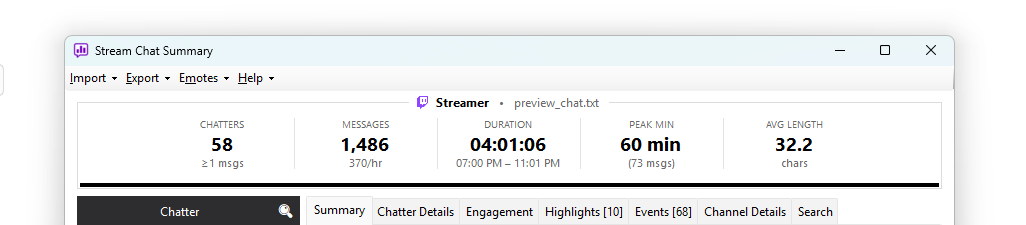
Five stat tiles run along the top of the window and stay visible no matter which tab you're on:
| Stat | What it means |
|---|---|
| CHATTERS | Distinct chatters who met the import dialog's Minimum messages threshold. The small ≥N msgs subtitle is the threshold itself. |
| MESSAGES | Total messages, including emote-only ones (unless you discarded them at import). The N/hr subtitle is the average rate across the session. |
| DURATION | Wall-clock time from first message to last (hh:mm:ss). The line underneath shows either the clock range (06:30 PM – 08:31 PM) for log/CSV imports or the VOD offset for VOD imports. |
| PEAK MIN | The busiest one-minute window of the stream — {N} min is the offset, the ({M} msgs) subtitle is the message count for that minute. |
| AVG LENGTH | Average characters per message (excluding command messages). A quick proxy for conversational vs. hype chat. |
Left half — chatter list
A list of every chatter who participated. Each row shows a single
Chatter column in the format Username [messages] (share%) — for
example StreamerBot [423] (15.2%). Rows are painted with a thin
coloured left border that matches each chatter's assigned colour
throughout the app. Hover any row for a tooltip that also shows their
engagement tier.
Click any row to select that chatter and populate the Chatter Details tab on the right.
The header bar has a 🔍 button that toggles a search and filter panel:
- Type in the Search chatters… box to filter by username
- Use the Tier dropdown to show only one tier (All Tiers / Drive-By / Casual / Engaged / Core)
John_Doe and john_doe are treated as the same chatter throughout
the app. This matches how Twitch and Kick handle usernames and means
a viewer who later changes the casing of their display name still
appears as a single chatter in your stats.
Right half — chat overview
The right half holds a tab strip. The first three tabs are always present; the rest appear only when there's relevant data:
| Tab | Always shown? | Shows |
|---|---|---|
| Summary | Always | Six sub-tabs: Overview, Chatter Share, Streamer Tags, Emote Usage, Top Words, Mention Network |
| Chatter Details | Always | Per-chatter breakdown — see Chatter Details |
| Engagement | Always | Four sub-tabs: Chatter Tiers, Chat Engagement, Chatter Velocity, Message Velocity |
| Channel Details | If streamer known | Avatar, follower count, account age, last broadcast |
| Highlights | If detected | Peak-activity moments |
| Events | If events present | Raids, subs, follows, and other markers |
| Search | Always | Full-log message search across all chatters |
Each chart has its own dedicated page under Stats & Analysis.
The menu bar
Four top-level menus:
- Import — every way to load a log (see Importing Chat)
- Export — save out as a log file, CSV, a Discord summary, or a shareable recap card (see Exporting)
- Emotes — open the Emote Manager
- Help — about page, live-logs folder, error-logs folder
Right-click context menus
Right-click any message in any grid (Messages, Duplicates, Questions, Streamer Tags, Highlights, Events, Search) for quick actions:
- Copy to Clipboard — copy the selected row(s) as plain text (
[HH:MM:SS] USER: MESSAGE) to the clipboard - Copy Twitch Timestamp Link — copy a clickable VOD timestamp link to the clipboard
- Open in Browser — open the VOD at that exact moment in your default browser
Message grids support multi-select — hold Ctrl to toggle individual rows or Shift to select a range. When more than one row is selected, Copy to Clipboard copies every selected row (one per line, in display order), and the single-timestamp actions Copy Twitch Timestamp Link and Open in Browser are disabled.
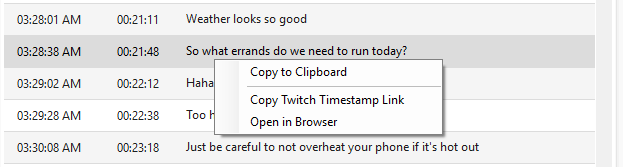
Especially useful for editors compiling a shot-list — right-click a highlight, paste a timestamped link into Discord, and your editor jumps straight to the moment.
Grid interactions
A few affordances that apply across every grid in the app:
- Click a column header to sort by that column. Click again to reverse the order. Works on the chatter list, top chatters, highlights, the Emote Manager, and the various analysis sub-tabs.
- Hover any emote in a message or chart cell to see a tooltip with its code (and the provider it came from). Useful when you can't quite remember what a custom emote was called.
Next: Chatter Details →