Your first import
Let's pull in a Twitch VOD and see what the app does with it. Any past broadcast URL works — your own, or a streamer you watch.
- Open Stream Chat Summary
- Click Import → Twitch VOD (Twitch URL)
- Paste a VOD URL like
https://www.twitch.tv/videos/1234567890 - Leave the defaults as they are and click Import
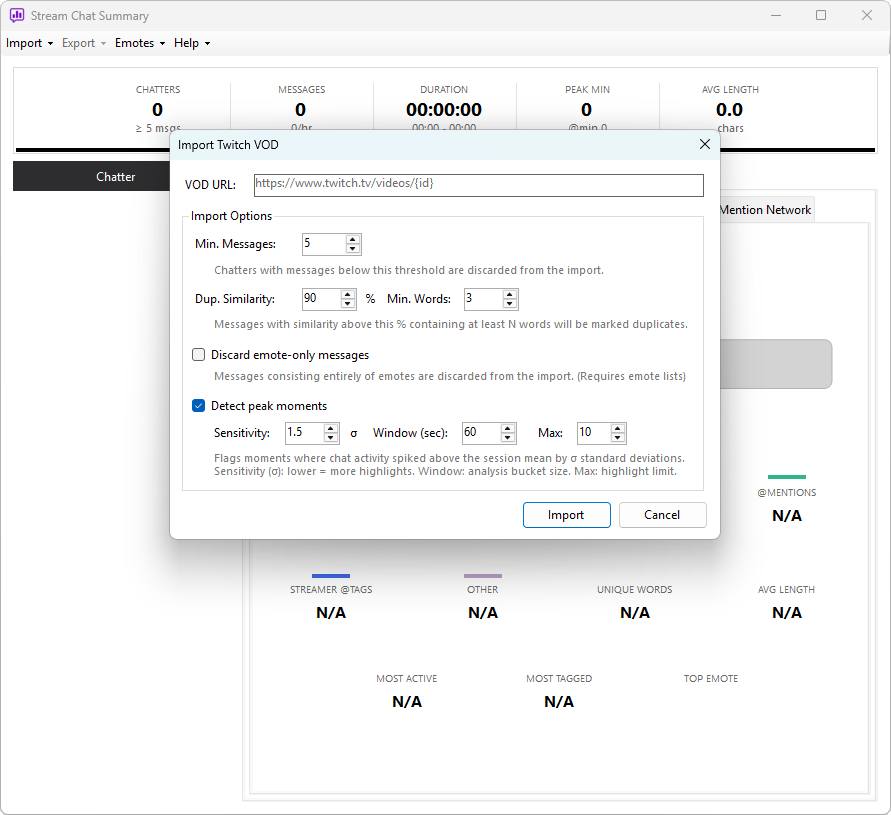
A progress bar runs along the top of the window while chat is downloaded from Twitch, parsed, and analysed. For most VODs this takes anywhere from a few seconds to a couple of minutes depending on length and chat volume.
What you'll see when it finishes
The main window splits into two halves. The left is the chat summary — counts, the chatter list, and per-chatter detail. The right is the chat overview — charts, highlights, channel info, and category breakdowns.
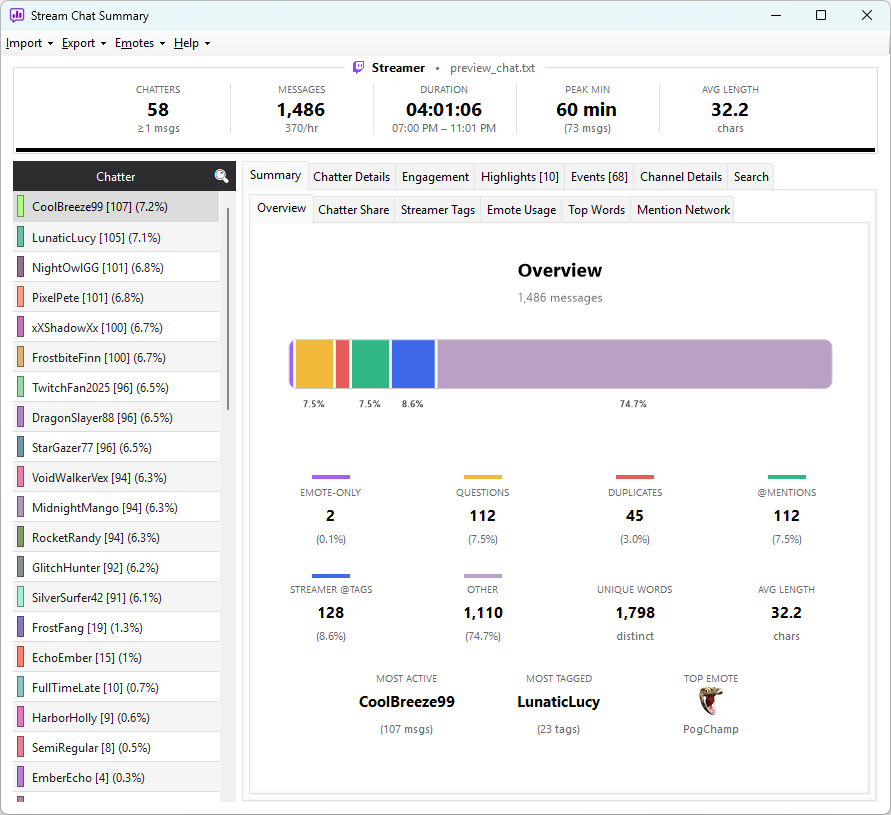
Five stat tiles update immediately across the top:
- Chatters — distinct chatters who met the minimum-messages threshold
- Messages — total messages in the log, with the average rate per hour
- Duration — wall-clock time from first message to last
- Peak Min — the busiest one-minute window, with its message count
- Avg Length — average characters per message (commands excluded)
The right-hand panel has three main tabs, plus conditional ones:
- Summary — six sub-tabs covering the chat as a whole: Overview (category breakdown), Chatter Share (bar chart of top chatters), Streamer Tags (ranked grid of every chatter who tagged the streamer), Emote Usage, Top Words, and Mention Network
- Chatter Details — per-chatter breakdown; click any chatter on the left to populate it
- Engagement — four sub-tabs: Chatter Tiers (loyalty breakdown), Chat Engagement (messages vs unique chatters), Chatter Velocity (session shape), and Message Velocity (messages per minute)
- Channel Details — avatar, followers, account age, last broadcast (shown when a streamer was identified)
- Highlights — auto-detected peak-activity moments (shown when highlights were found)
- Search — full-log message search across all chatters
Every chart and grid is interactive. Click a chatter on the left to pin them in the Chatter Details view, where you can scrub through their messages, duplicates, questions, and engagement timeline.
What's next
That's the basic loop. From here:
- Tour the main window in detail
- Understand how highlights are detected
- Learn the engagement tier system
- Try capturing a live stream instead of a VOD
- Export your findings for Discord, a spreadsheet, or another tool